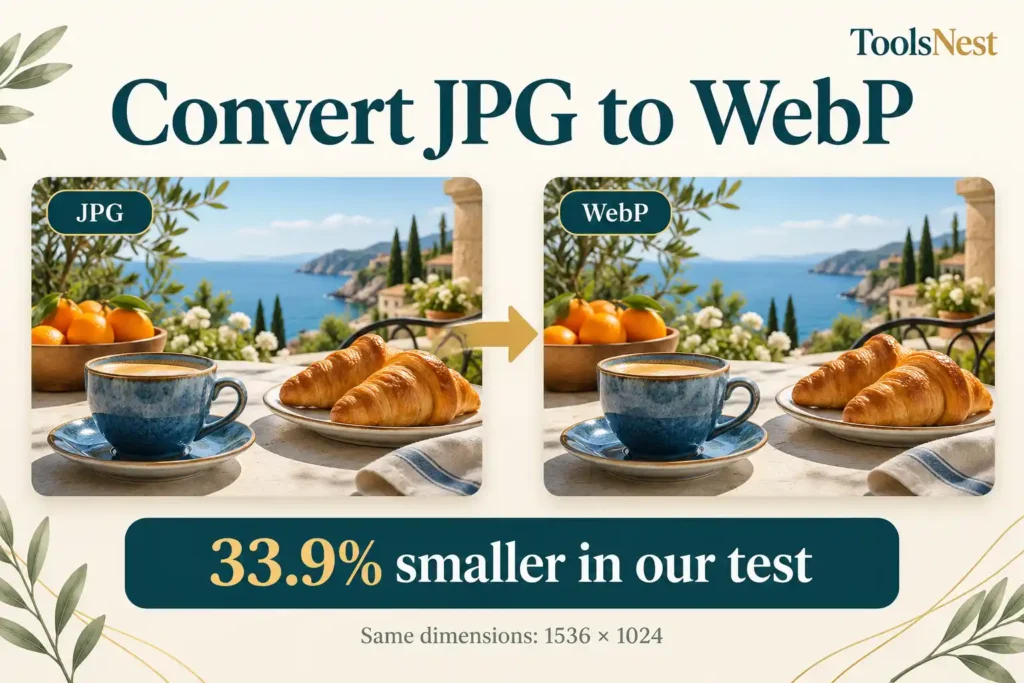
Could I save storage space simply by switching formats while keeping the image’s width and height unchanged? I tested this with a JPG showing coffee, croissants, and oranges on an outdoor table.
Using the ToolsNest image converter, I selected WebP and kept the quality setting at 92%. The downloaded file was 33.9% smaller, while its dimensions stayed at 1536 × 1024 pixels.
Here is how to convert JPG to WebP online, what the test produced, and what to check before using your converted image. The sample was AI-generated for this demonstration; the conversion and file measurements were performed on the actual files.
Table of Contents
When Does Converting JPG to WebP Make Sense?
WebP is worth considering when you want a lighter image for a website that supports the format. A smaller image file means fewer bytes to transfer, although that alone does not determine how quickly an entire page loads.
Google’s WebP documentation explains that the format supports both lossy and lossless compression. Our test used a quality-controlled export; it was not a demonstration of lossless conversion.
Keep a JPG copy if a particular application, upload form, or printing service requires it. The useful format is the one your destination accepts and displays correctly.
How to Convert JPG to WebP Online
You can follow the same steps with your own image:
- Open the JPG to WebP converter.
- Choose or drop your JPG file into the tool.
- Under Convert to, select WebP.
- Check the Quality setting. I used 92% for this test.
- Press Convert and note the displayed output size.
- Click Download, then open the saved file to inspect it.
Check the output format before clicking Convert. During setup, I initially left JPG selected, which produced another JPG rather than a WebP. I corrected the selection and ran the conversion again using the original file.
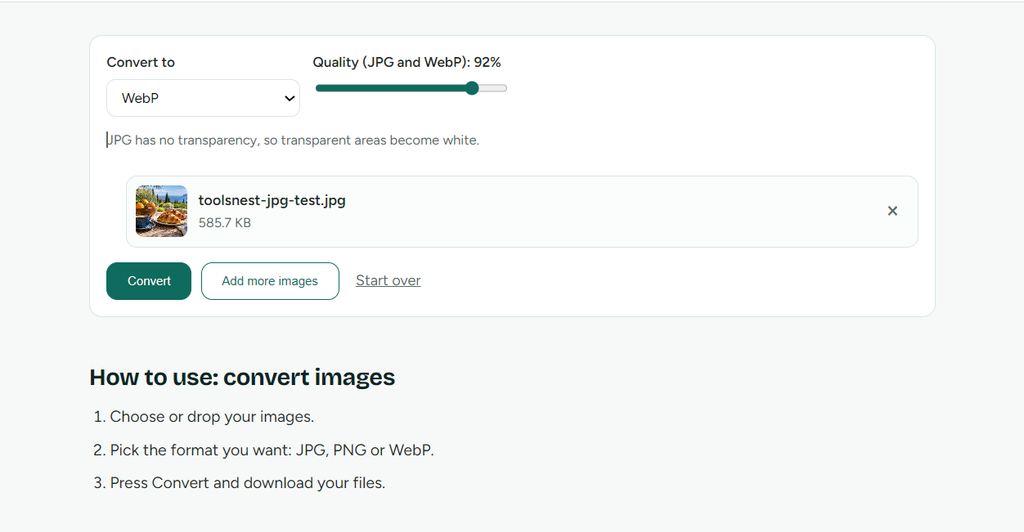
The quality percentage is an export setting, not a promised reduction in file size. Choosing 92% does not mean the download will be 92% smaller or retain a precisely measurable 92% of the original’s visual detail.
Our JPG to WebP Test: Settings and Results
The source image contained several useful details for inspection: pastry layers, orange peel, wood grain, and woven fabric. It also included a softly blurred background.
I prepared the AI-generated sample as a JPG using a quality setting of 95. That source file measured 599,797 bytes. In ToolsNest, I selected WebP at 92% quality without resizing or cropping. These quality values belong to different encoders and should not be treated as equivalent points on a shared scale.
After conversion, the tool displayed 585.7 KB → 387.2 KB. I then checked the downloaded file rather than relying only on those rounded figures.
| Measurement | Original JPG | Downloaded WebP |
| Width | 1536 pixels | 1536 pixels |
| Height | 1024 pixels | 1024 pixels |
| File size | 599,797 bytes | 396,478 bytes |
| Approximate size | 585.7 KiB | 387.2 KiB |
KiB uses 1,024 bytes per unit. The tool labels its displayed values as KB.
The difference was 203,319 bytes, calculated as:
(599,797 − 396,478) ÷ 599,797 × 100 = 33.9% smaller
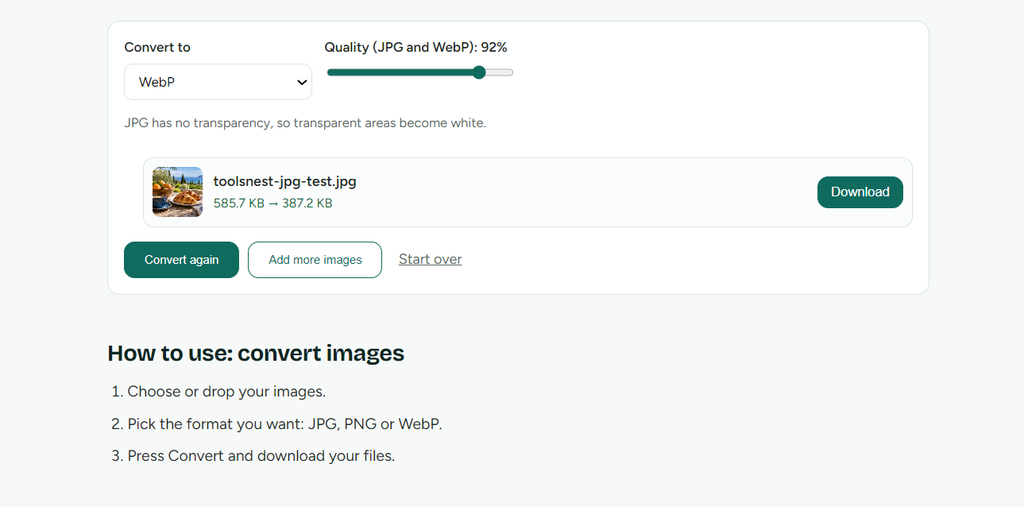
This result belongs to one image at one quality setting. Another JPG might shrink by a smaller or larger amount—or come out heavier than it started.
What Did the Converted Image Look Like?
In the displayed WebP, the croissant layers, the grain of the wooden bowl, and the fabric texture remained clearly visible. The composition was unchanged, with no resizing or cropping.
The visible textures remained useful for this illustration, but that does not mean the conversion preserved every pixel unchanged.
For your own check, open both files at the same zoom level. Look at textured areas and sharp edges, then inspect the result at the size readers will actually see.
Why File Size and Image Dimensions Are Different
Dimensions describe the pixel grid: in this case, 1536 pixels wide by 1024 pixels tall. File size, meanwhile, counts the bytes needed to store that picture in its saved format.
Our WebP kept the same pixel dimensions while using fewer bytes. This is why a smaller download does not necessarily mean a smaller-looking picture.
If your image is wider than you need, resize it to suitable dimensions before preparing the final export. Resizing and format conversion solve different problems, so keep track of which settings you change.
Also remember that the JPG source is already compressed. Converting it cannot recover detail previously discarded when that JPG was saved.
Choosing a Quality Setting for Your Image
The 92% setting gave us a useful result, but this test did not establish an ideal setting for every picture.
If you need a lighter file, try a lower quality value using the same original JPG. Compare the new download with the earlier version and inspect important details before choosing.
For images containing small text, watch for softened letters or marks around high-contrast edges. For photographs, check hair, foliage, fabric, or other fine textures.
If your main goal is further size reduction, our image compression guide explains a separate test and the settings used.
Mistakes to Avoid
- Renaming the extension: changing .jpg to .webp does not convert the image data.
- Selecting the wrong output: confirm that the format menu says WebP.
- Reusing converted copies: compare settings from the original JPG to avoid unnecessary repeated encoding.
- Assuming smaller means better: a reduced file is useful only if its appearance suits your purpose.
- Skipping the destination check: upload a sample and verify that your website or application displays it correctly.
Frequently Asked Questions
Does this process also work with files ending in .jpeg?
Yes—the longer .jpeg extension still identifies a JPEG image, just as .jpg does. Load your .jpeg file into the tool, then pick WebP from the format menu.
Is a smaller file guaranteed when switching from JPG to WebP?
No. The result depends on the source image, its existing compression, and the export settings. Our measured saving was 33.9%; it is not a guaranteed rate.
Does converting to WebP create a transparent background?
No. Converting this JPG preserved its existing background. Although WebP supports transparency, selecting the format does not remove objects or backgrounds automatically.
Try It With One Image First
Start with a JPG you can compare easily. Use the ToolsNest image converter, download the WebP, and check its dimensions, file size, and appearance.
In our example, the WebP used fewer bytes while keeping the full 1536 × 1024 pixel dimensions. Your own downloaded result will tell you whether the same approach is useful for your picture.