If you searched for “rotate image online,” you may have come across both rotation and flip controls. They do different jobs: one turns the picture, while the other mirrors it. Choosing the right option matters, especially when your image contains writing.
I tested both operations with the ToolsNest rotate image tool, using one PNG of a café. I downloaded a version rotated 90 degrees to the right, then a horizontally flipped version with no rotation.
The results gave us three useful things to compare: orientation, pixel dimensions, and file size. Both edits worked as expected visually, but neither produced a smaller file. Here is how to rotate an image online, choose the appropriate controls, and check the download before publishing.
Table of Contents
Our Test Image and Setup
The sample was an AI-generated café scene created for this demonstration. We started with a 1536-pixel-wide, 1024-pixel-tall PNG, listed in ToolsNest as 2.94 MB.
I chose a scene with recognisable differences between its two sides:
- A potted lemon tree stood on the left.
- A chair and small table appeared on the right.
- An OPEN sign hung on the central teal door.
These details made the edits easy to follow. The tree and chair showed whether the sides had switched, while the sign revealed whether the lettering had been mirrored.
The original was already upright. I deliberately turned it sideways to test rotation rather than claiming to repair an incorrectly oriented source. I then used the original image again to test a left-to-right mirror effect without rotation.
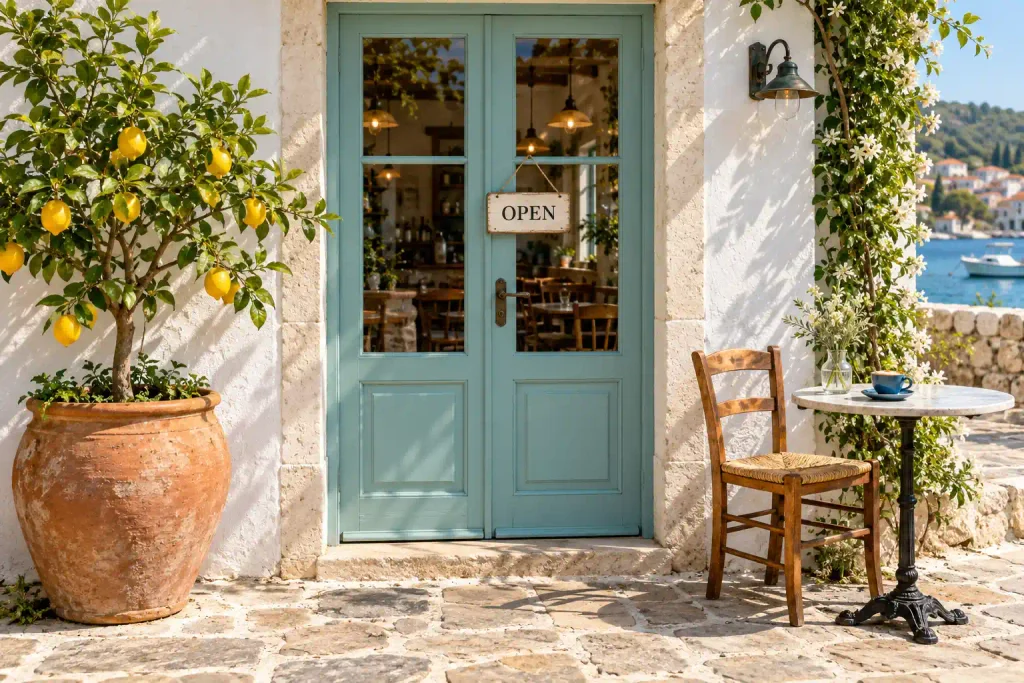
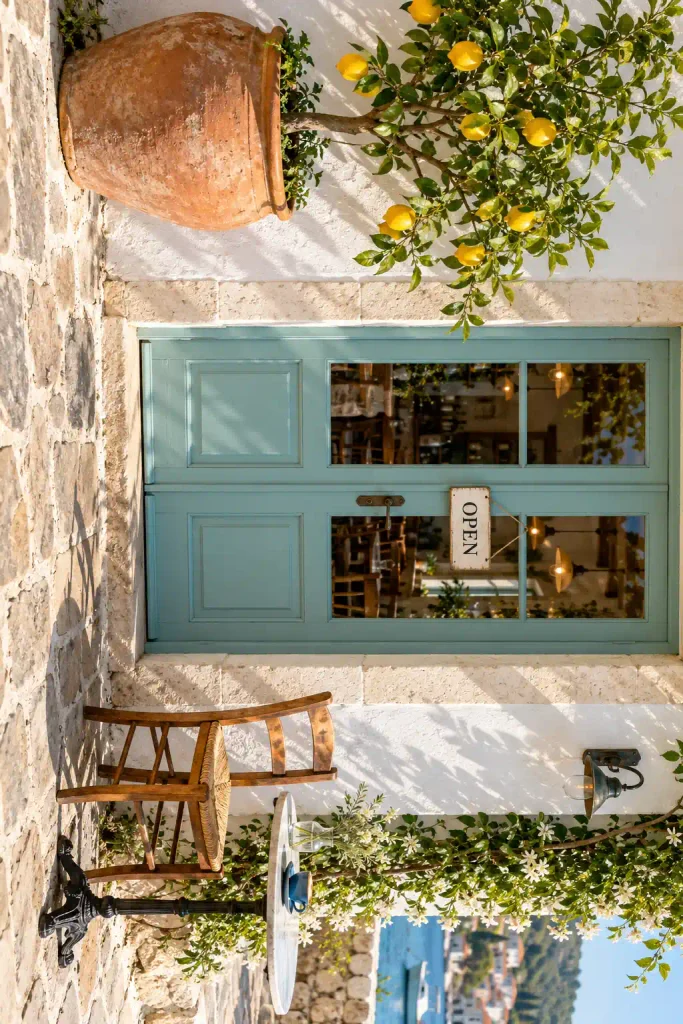
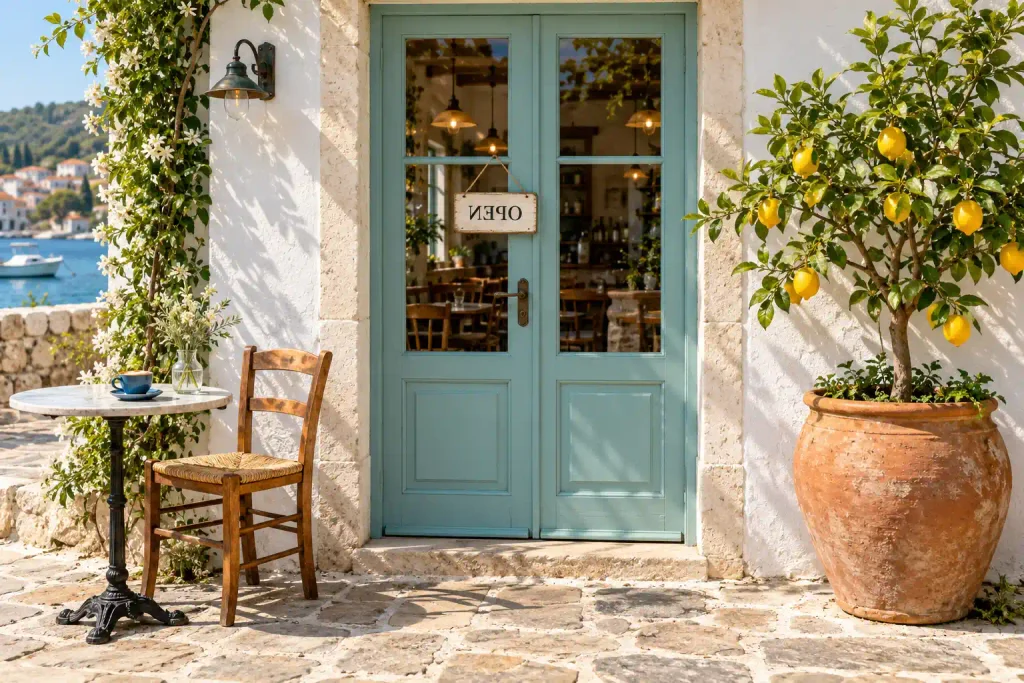
Images are displayed as WebP copies for this article. The measurements below refer to the PNG files used in our test.
Should You Rotate or Flip Your Image?
Look at what needs correcting before choosing a setting.
Rotation changes which edge faces upwards. It is useful when a photo appears sideways or upside down. The scene turns as a whole.
A horizontal flip exchanges left and right. It produces a mirror version of the picture, including any writing.
A vertical flip exchanges top and bottom. This is a reflection, which differs from turning the entire image 180 degrees.
A quick check is to examine a sign, label, or other familiar detail. Readable letters lying sideways suggest an orientation problem. Backwards letters may indicate that the image has been mirrored.
Without text, compare the picture with a reference you trust. For example, a product’s buttons or a building’s entrance may reveal whether its sides have been reversed. Avoid flipping an image solely because the composition looks unusual; the unfamiliar arrangement might be accurate.
How to Rotate an Image Online
To repeat our 90-degree rotation test:
- Open the ToolsNest image rotation tool.
- Choose or drop your original image into the tool.
- Under Rotate, select 90° to the right.
- Leave Flip horizontally unchecked.
- Leave Flip vertically unchecked.
- Press Apply.
- Click Download, then open the saved file.
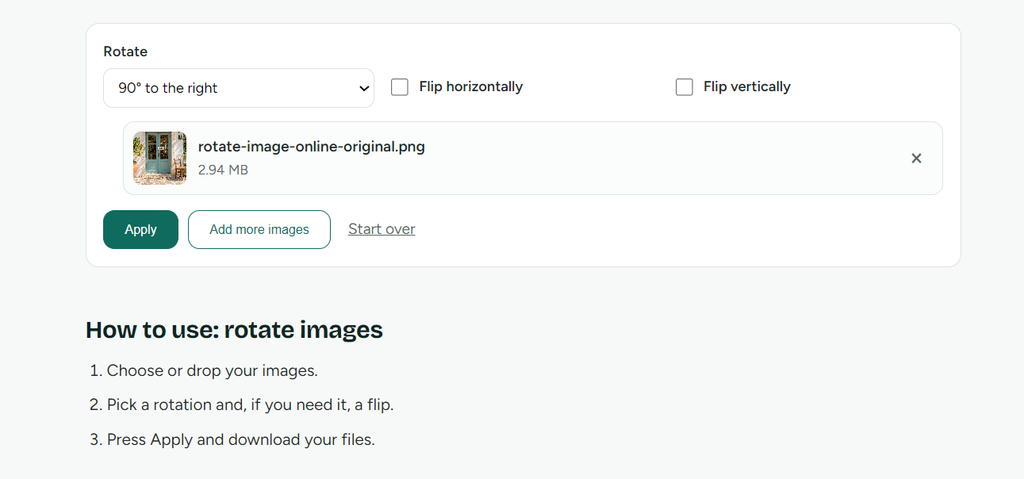
I left the flip controls off so the first download would demonstrate rotation alone. That made it easier to identify the effect of the selected setting.
The tool offers both left and right quarter-turns, along with 180° and No rotation. Choose the direction according to the source rather than automatically copying the setting used in our example.
Choosing the Correct Direction for a Sideways Photo
Imagine a photograph of a person standing upright. If their head points towards the image’s right edge, select 90° to the left. When the person’s head is on the left side of the sideways photo, choose 90° to the right to bring them upright.
For an upside-down photograph, use 180°.
A landscape picture may require a different reference point. Look for the sky, the top of a doorway, or another feature that establishes which way is up.
If the first attempt turns the picture the wrong way, return to the original and select the opposite direction. Working from a clearly identified source avoids confusion about which version you are editing.
What Happened in Our Rotation Test?
The downloaded PNG measured 1024 × 1536 pixels. Its original width and height had exchanged places, and the café had turned clockwise.
The original top edge now appeared on the right. The scene remained visible, but it was sideways inside a portrait-shaped file.
This is an important distinction when preparing an article image. Rotating an upright landscape photo does not create an upright portrait composition. It changes the direction of everything in the frame.
If you want a narrower view of the café while keeping the door upright, crop the image instead. If the composition is already suitable but the dimensions are too large, resize the image.
Those operations solve different problems. Choose one based on whether you need to change direction, remove part of the scene, or reduce its pixel dimensions.
How to Flip an Image Horizontally
For the second experiment, I selected:
- Rotate: No rotation
- Flip horizontally: Checked
- Flip vertically: Unchecked
I applied the settings and downloaded the new result.
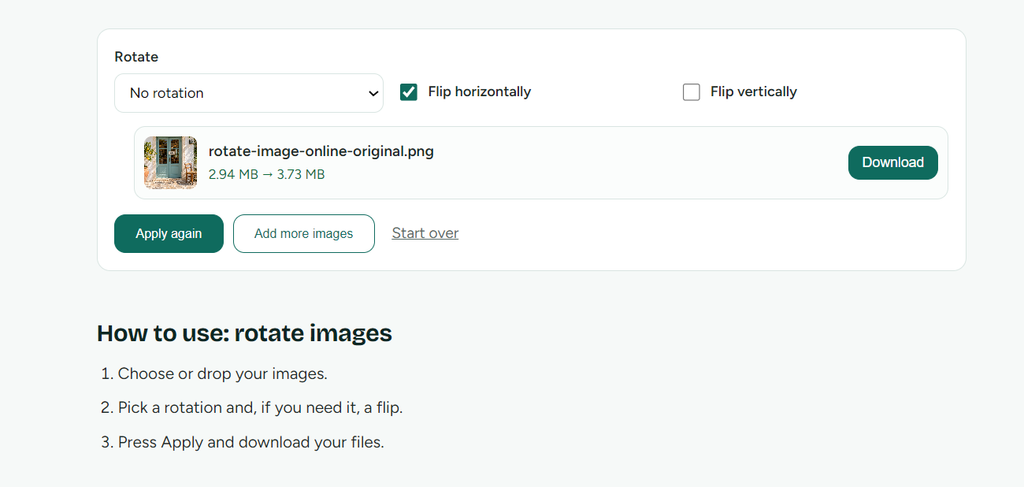
The café stayed upright. The lemon tree appeared on the right, while the chair and table moved to the left. The OPEN sign became backwards, confirming that the scene had been mirrored.
Before applying a flip, review the rotation menu. Leaving a quarter-turn selected would combine rotation and reflection. Our comparison required No rotation so we could inspect the horizontal flip by itself.
Mirroring can be useful for arranging a decorative illustration, but it deserves more caution with factual images. Product labels, instructions, logos, and directional signs may become inaccurate or unreadable.
Original and Downloaded Results
I checked the saved files rather than relying only on the interface’s rounded size figures.
| Measurement | Original PNG | Rotate 90° Right | Horizontal Flip |
| Width | 1536 pixels | 1024 pixels | 1536 pixels |
| Height | 1024 pixels | 1536 pixels | 1024 pixels |
| File format | PNG | PNG | PNG |
| Tool’s displayed size | 2.94 MB | 3.65 MB | 3.73 MB |
| Exact file size (bytes) | — | 3,831,656 | 3,913,299 |
The original’s exact byte count is not included in this comparison; its size above is the rounded figure displayed by the tool.
The output figures correspond approximately to MiB, which uses 1,048,576 bytes per unit, although the interface labels them MB. The exact byte counts provide a clearer record of the downloaded files.
Neither operation reduced storage size. These results apply to our sample and should not be treated as a prediction for every PNG.
Why Were the Exported Files Larger?
Rotation and flipping change how an image is arranged. They are not settings designed to reduce its storage requirements.
Saving an edited image creates a newly encoded file. Its size can differ from the original even when its total pixel count stays the same.
MDN’s image format guide explains that PNG uses lossless compression. However, lossless compression does not mean that every export will occupy the same number of bytes.
Our measurements confirmed the increase but did not identify the precise encoding choices responsible. We also did not perform a pixel-by-pixel comparison, so visual inspection should not be presented as proof that every colour value remained identical.
If the edited image is too heavy for your page, finish the orientation changes first, then test image compression. Open the compressed copy and check important details before choosing it for your page.
To explore ways of reducing the exported file’s size, see MDN’s guide to image formats and compression tools, which covers format choices and settings you can experiment with.
A Practical Check Before Publishing
Open the downloaded image at a useful viewing size. Then inspect it at the size it will occupy in your article or other destination.
First, confirm the direction of the scene. Next, look closely at any lettering. Finally, check the file’s dimensions and storage size.
On Windows, you can find these details through the file’s Properties. Use the Details tab for dimensions and the General tab for file size. When recording a precise measurement, distinguish Size from Size on disk.
Give each version a descriptive filename, such as cafe-original.png, cafe-rotated-right.png, or cafe-horizontal-flip.png.
Keep the untouched original. A filename that records the operation is more useful than several downloads called “final” or “final-new.”
After inserting the chosen result into your page, preview the layout. At the same displayed width, the portrait-shaped export will occupy more vertical space than the landscape original. Check the mobile preview too, especially if the image pushes useful instructions far down the page.
Mistakes Worth Avoiding
Applying two operations unintentionally. Review the rotation menu and both flip checkboxes before processing the image.
Using a flip to solve a sideways-photo problem. A reflection can change the scene without putting it in the intended orientation.
Judging only from a thumbnail. Open the download to check small labels, details, and the actual direction of the result.
Treating increased file size as proof of better quality. More bytes alone do not establish that an export looks better or contains additional useful detail.
Frequently Asked Questions
Can I Rotate a PNG Image and Keep PNG Format?
Our starting file and both downloads were PNGs. Check your saved file’s extension and properties when repeating the process with a different source.
Does a 90-Degree Rotation Reduce Resolution?
The downloaded image measured 1024 pixels wide by 1536 pixels tall, reversing the original width and height. The total pixel count remained unchanged. We did not resize the image during this test.
Can a Horizontal Flip Correct Backwards Writing?
Yes, if the entire image was mirrored originally. A horizontal flip reverses the whole scene.
If only one word is backwards while everything else is correct, flipping the entire picture will also reverse the correct elements. That requires a more selective edit.
Will Rotation Make the File Smaller?
There is no guarantee. In our test, both edited files took up more storage than the original, so it is worth checking the size of your own download.
Try It With a Recognisable Image
Start with the ToolsNest rotate image tool and an image containing an obvious reference point. Change one operation at a time, download the result, and compare it with the original.
A tree, a doorway, or a short word can make the effect clear. Once the direction is correct, check the file size and page layout before publishing.